You need
to configure the GV STRATUS VTR Ingest application before using it.
- STRATUS-VTR-ING license must be installed on the GV STRATUS Core server.
Make sure you have already
configured the GV STRATUS VTR Controller application before completing this
section. The VTR information in these two applications needs to match.
-
In the
GV STRATUS VTR Ingest application, select Tools | Options.
-
In the VTR tab,
enter the IP address or the host name of the GV STRATUS Core Server in the
Stratus Core Server
Address field.
-
Select
the Prompt for Tape ID box.
This feature allows you to customize the
identification of your tape. If you don’t enter a tape ID, GV STRATUS VTR Ingest prompts you to enter the ID before
you ingest the first clip.
-
Select
Enable the Timecode Break
Scan to allow you to scan and capture media from a tape
according to timecode breaks.
-
If needed, you can select the option to
automatically start recording after the Timecode Break Scan.
-
Select a
channel from the drop-down list and enter the name of the channel.
-
Enter
the IP address or name of the computer where GV STRATUS VTR Controller is installed. (If GV STRATUS VTR Controller is installed on the same machine,
enter localhost.)
-
Select
the COM Port from the drop-down list.
-
If you
want to record to two different locations through GV STRATUS VTR Ingest, you can check the Enable Backup
Channel box and select a channel from the Default Backup Channel drop-down list.
Note: Once the option to enable backup channel is
selected, a Backup channel drop-down list appears within GV STRATUS VTR Ingest channel windows. You can easily
select other backup channels from the drop-down list if needed.

-
From the
list of available VTRs, select the VTR router source.
Once selected, the router source is
displayed in the Selected VTR box.
-
To make
the changes but keep the Options dialog box open, click Apply.
-
Proceed
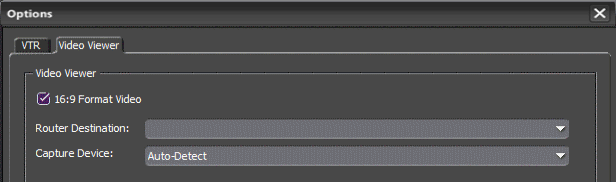
to configure video viewer in the Video Viewer tab.
If you have the optional Hauppage WinTVGo
video capture card or Blackmagic Design DeckLink video capture card installed in
your GV STRATUS VTR Ingest machine, you will need to define the
destination of the router connected (via digital to analog converters, if
needed) to your video capture card.
-
In the
Video Viewer tab, check the 16:9 format video if desired.
The GV STRATUS VTR Ingest client displays video in the Video Viewer
according to the primary format set in GV STRATUS Control Panel
Format settings.
-
Select
the router destination from the drop-down list. If no router has been
configured, this field will be grayed out.
-
For the
Capture Device drop-down list, select No Capture Device if you want
to view the asset via a separate video monitor.
-
If you
have installed a video capture card, select the device in the capture device
drop-down list.
-
Click
OK after you are
done with the configuration.
The GV STRATUS VTR Ingest application is now ready for use.