
About the asset context menu
To open the asset context menu, right-click the asset.
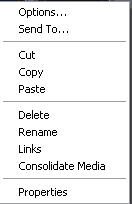
| Menu Item | Description |
|---|---|
| Options | Opens the Options dialog box which allows you to change the way assets are displayed in the asset list. |
| Send To | Opens the Send To dialog box which is used to send assets to a different location– another bin, disk volume, or another K2 Summit Production Client. Send To is also used to export clips or programs to local windows drives or networked devices. |
| Cut, Copy, Paste | Used to move assets, or make a additional copies. Copying a clip does not consume media disk space. Only a new reference to existing media is created. |
| Delete | Deletes the selected asset. |
| Rename | Opens the Rename dialog box for the selected asset. |
| Links | Opens the Links dialog box allowing you to locate other assets that are linked to the selected asset. |
| Consolidate media | Erase unused media. |
| Properties | Opens the Properties dialog box for the selected asset. |